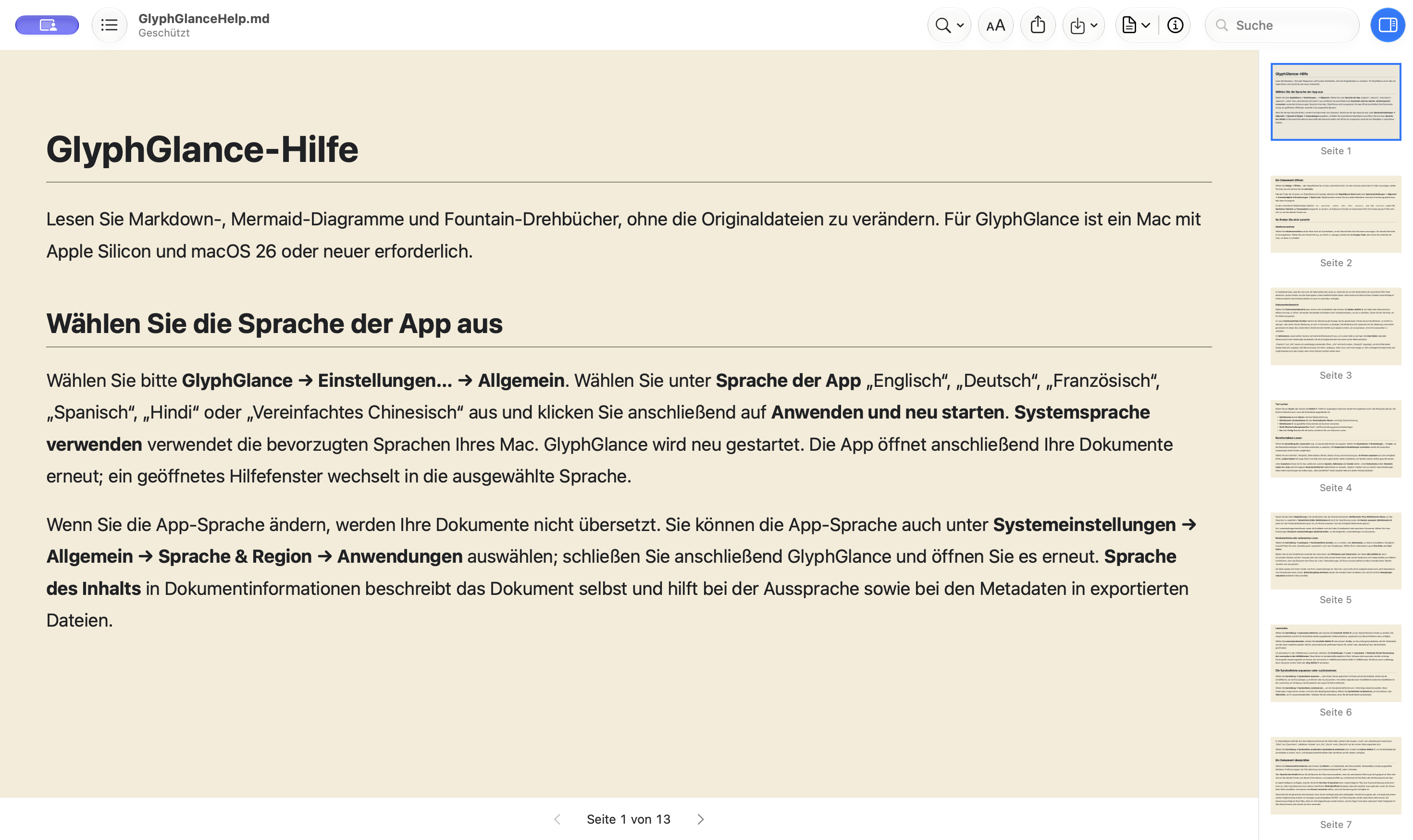
Pages, spreads, and a clear overview.
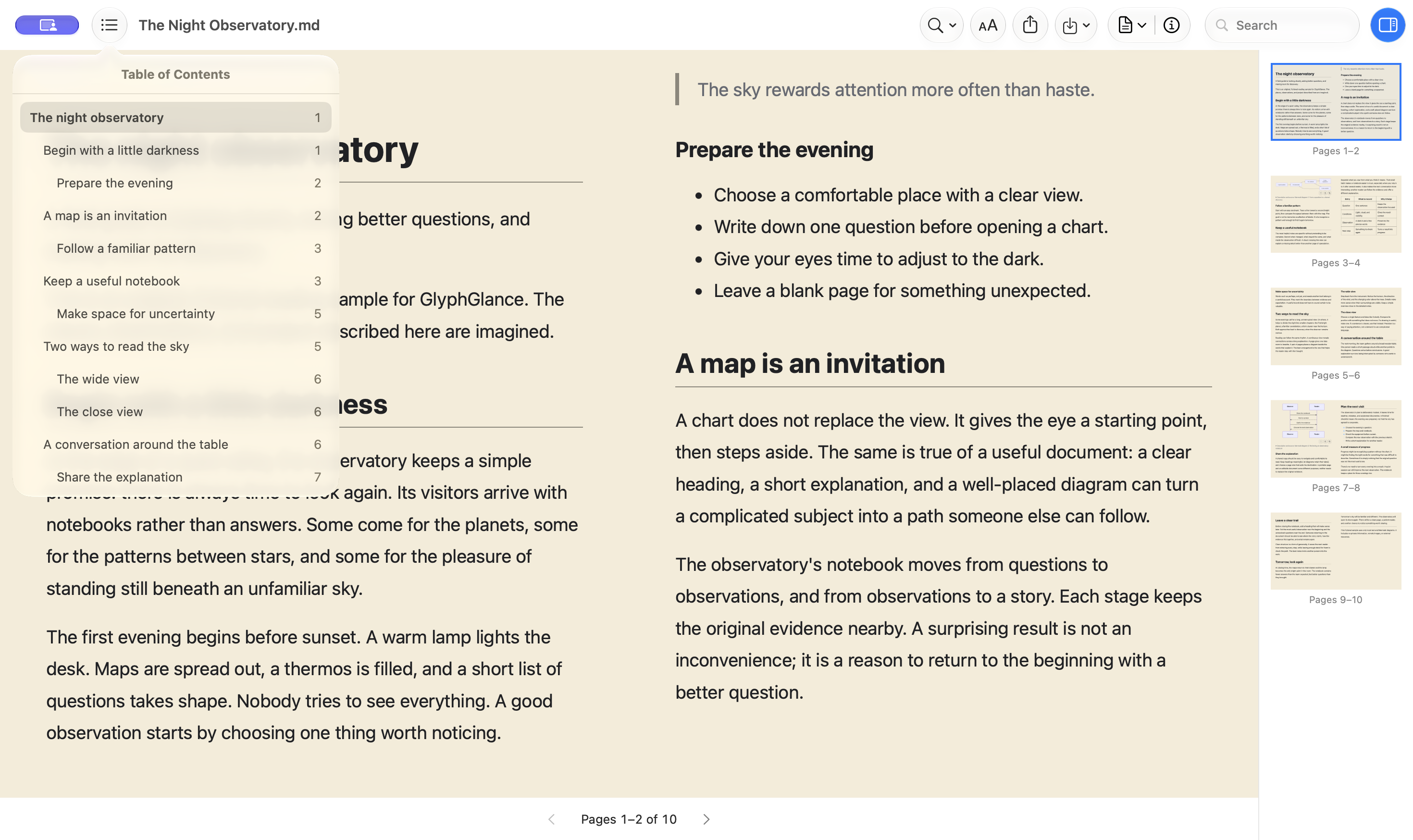
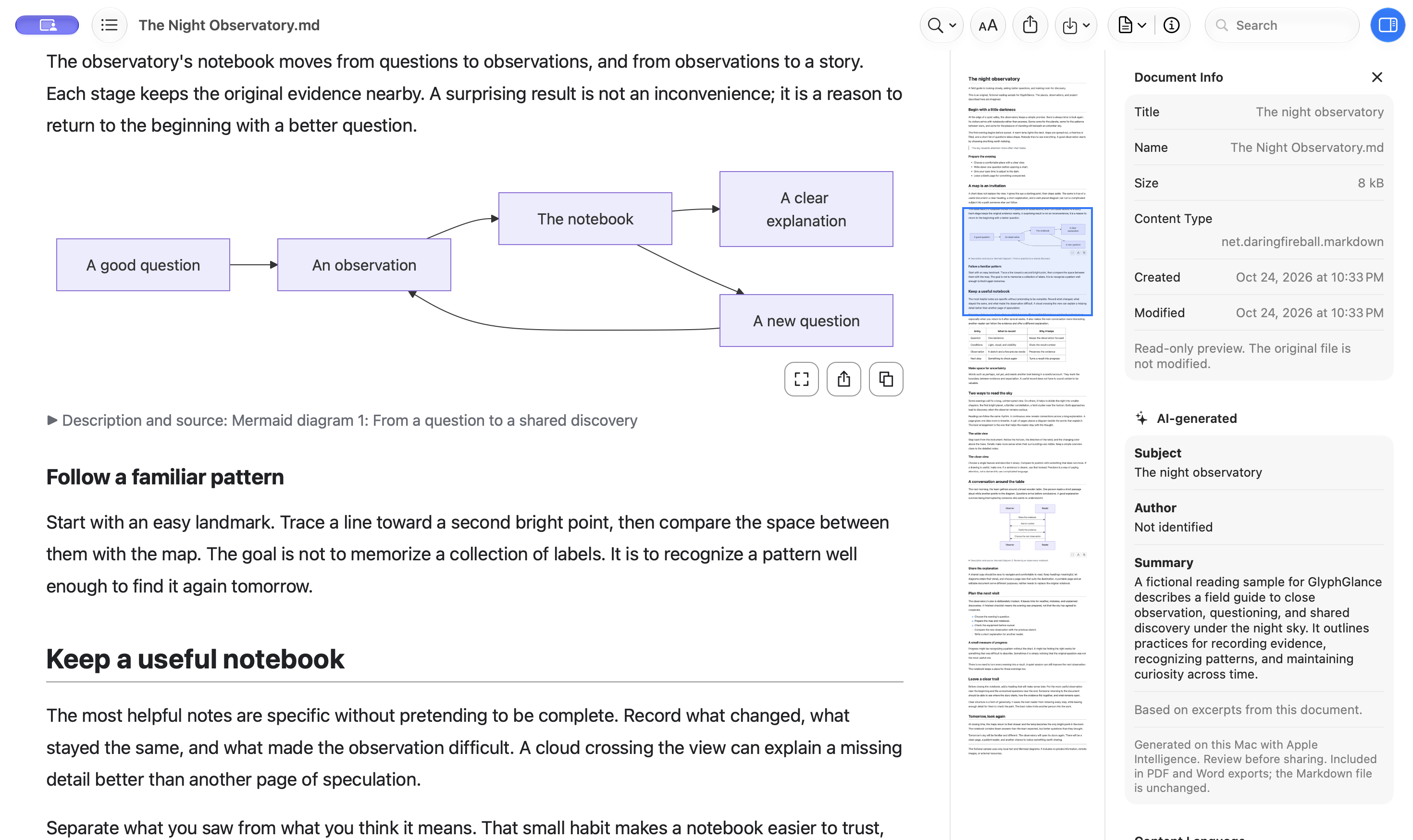
Scroll continuously, read one page, or open a two-page spread. Jump through headings with Contents, or find your place in an interactive minimap and page thumbnails. Overview and Info resize independently.
GlyphGlance
VERSION 1.4 / FREE / AVAILABLE NOWMarkdown, Mermaid diagrams, and Fountain documents, beautifully in view. New in 1.4: read in pages or two-page spreads, navigate with Contents and Overview, and make the app your own in six languages. Your original file stays untouched.
Available free on the Mac App Store for Apple silicon Macs. Requires macOS 26 or newer, including macOS 27.
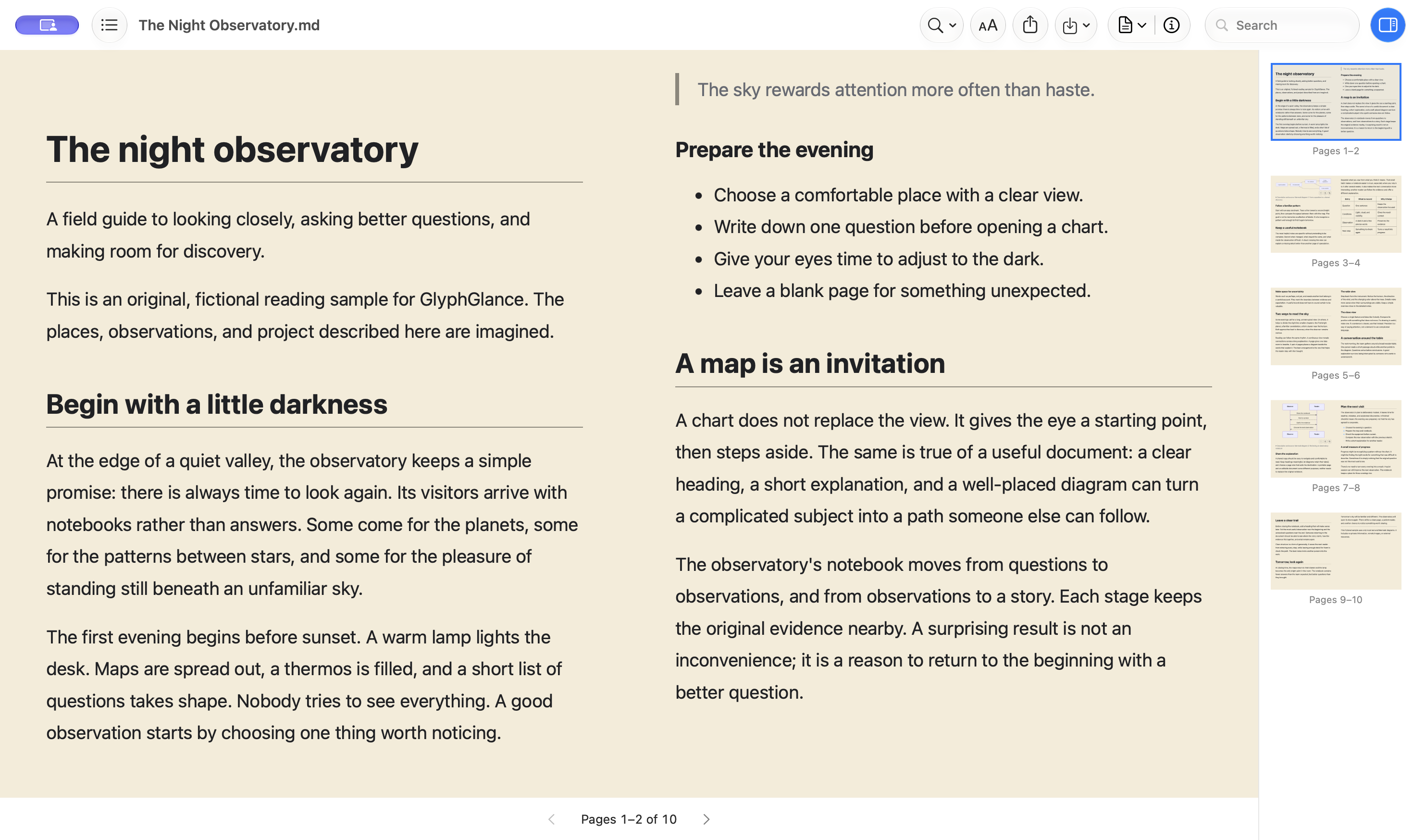
NEW IN 1.4 / AVAILABLE NOW
GlyphGlance 1.4 is available now, free on the Mac App Store. Choose a reading layout, move through documents with Contents and Overview, and use the interface and Help in the same six languages as this website.
The guide follows the released app’s own help topics and wording in each website language.
A QUICK LOOK GOES A LONG WAY
Read a README, review an architecture note, or inspect a research write-up directly in Finder. Supported diagrams, formulas, and highlighted code appear alongside the explanation.
Turn on GlyphGlance Quick Look in macOS System Settings. If another Markdown preview extension takes priority, you may need to disable that competing extension.
Select a supported Markdown, Mermaid, or Fountain file in Finder.
Press Space to read the inline preview. Open the document in GlyphGlance for search, enlarged diagrams, and PDF or Word export.
READING, YOUR WAY
Make reading your own, from a quiet page to the right font, spacing, and color. Your choices change the view, while the original document stays exactly as it was.
Enter Reading Mode with Shift–Command–R to hide the main toolbar and Info sidebar. Contents, Reading Appearance, and Overview stay available at the top, alongside search, text selection, links, diagrams, and Read Aloud. Leave Reading Mode to restore your previous presentation.
Optionally enter native full screen and restore the previous window when you leave. This setting is off by default. Reading Mode is available in the app, rather than Finder Quick Look. Read the Reading Mode guide.
Choose System, Georgia, Palatino, Verdana, or bundled offline OpenDyslexic. Adjust text size, line spacing, indents, alignment, and margins. Fit Window follows the window width; Readable Column limits the line length.
Save defaults in Settings or adjust one window with Reading Appearance. Changes apply live to open documents, including outside Reading Mode. Quick Look, PDF and Word exports, and shared diagrams keep their own formatting. Explore typography and layout.
Choose System, Light, or Dark appearance independently of Default, Sepia, Gray, or Custom page themes. Custom themes retain separate light and dark backgrounds, while text and interface colors adapt for contrast.
Mermaid canvases follow the page background while preserving authored diagram colors. These choices affect GlyphGlance’s reading window; your global macOS appearance stays as you set it. Find your appearance.
Built on version 1.3: improved responsive text width and Zoom to Fit, preview retry and recovery, coordinated diagram rendering and export, and bounded optional AI metadata generation. The Markdown parser includes a fix for a parsing denial-of-service issue.
THE SAME DOCUMENT, A DIFFERENT LIGHT
Follow macOS automatically, or choose a Light or Dark reading window. Give the page a warm sepia palette, neutral gray, or custom colors without changing your font or layout.
Use Reading Appearance for temporary adjustments to one window. Choose Use Saved Preferences to reconnect it to your defaults.
READ IT. REUSE IT.
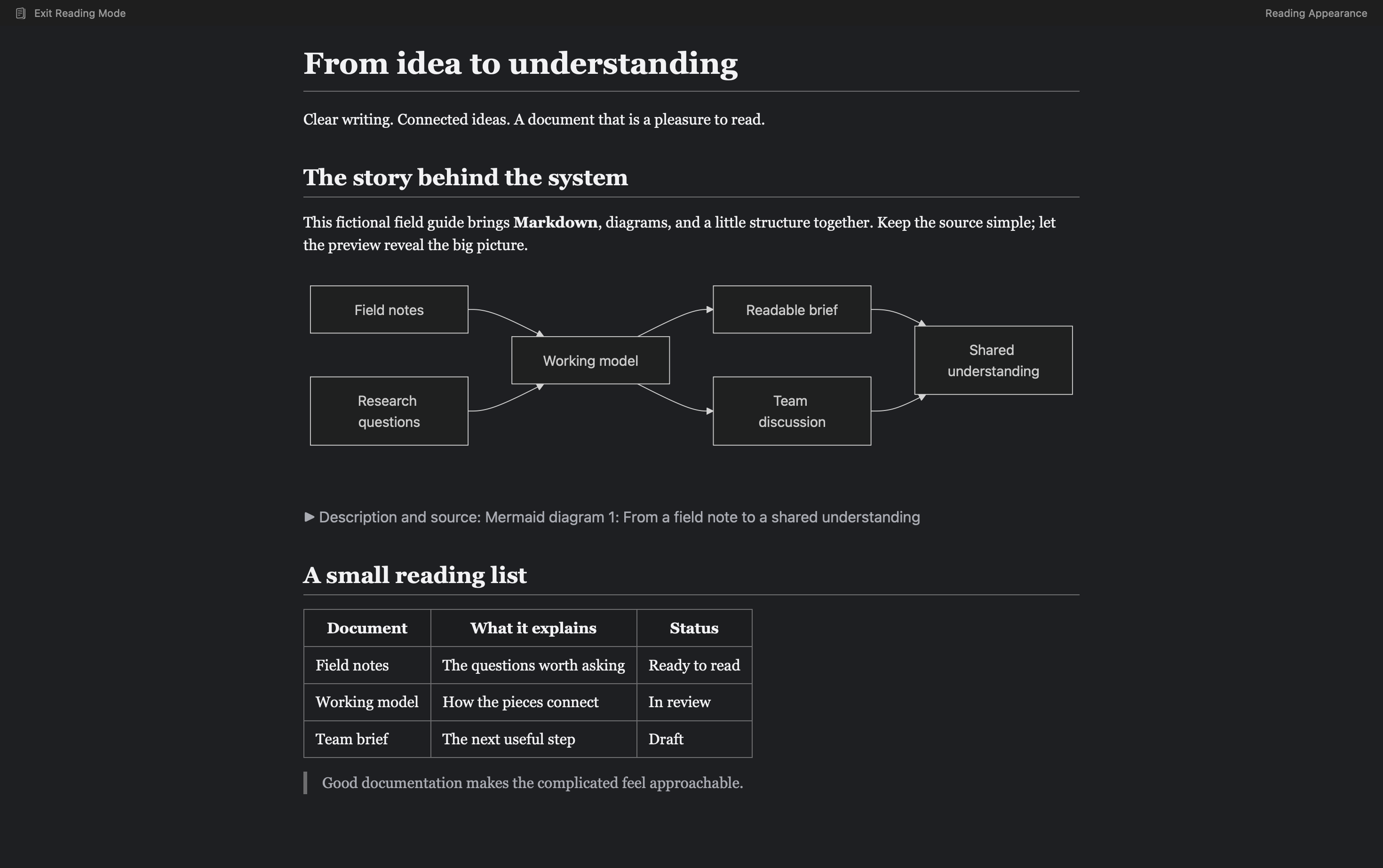
Take the next step with what you read: reuse an editable document, share the diagram that explains it, or review a locally generated summary before exporting.
Export .docx files with native heading styles, editable lists and tables, links, and common mathematical equations. Mermaid diagrams stay sharp as SVG vectors, with compatibility images for older readers.
Word controls reflow and pagination. Diagrams are graphics, rather than editable flowchart shapes. Explore Word export.
Share an individual Mermaid diagram as SVG or a PDF page fitted to the graphic. Copy offers SVG and PDF alongside PNG and TIFF alternatives for compatible apps and clipboard managers.
Enlarge a diagram in a separate display-sized view. Finder Quick Look keeps the inline preview; Share, Copy, and enlargement controls are available in the app. Read the diagram guide.
When Apple Intelligence’s on-device model is available for the document language, Info can show a generated subject and short summary. PDF and Word exports can include them too. Author attribution requires an explicit source byline.
Generation stays on your Mac. AI descriptions can be inaccurate; review them before sharing. Reading and export still work when the model is unavailable. How metadata works.
Export paginated PDFs with selectable, searchable text and a heading-based contents outline. Mathematics and Mermaid diagrams remain vector content wherever possible; source bitmap images remain images.
Supported document structure, language, and authored descriptions are retained. Your reading zoom doesn’t change the exported layout. Read the PDF guide.
Search rendered text with Command–F, zoom to fit, inspect file details, and customize the native toolbar. Pause and resume Read Aloud when you need a break. On macOS 27, control the active reading through Now Playing.
Speech uses your system voice and speaking preferences. Set up Read Aloud.
Read, change the preview profile, enlarge a diagram, or export without editing the original file. Rendering happens locally using bundled resources, with no in-app account or hosted rendering service.
Supported local content works offline. Remote resources are blocked, and document HTML is shown as text rather than executed.
Use Preview File, Export as PDF, Export as Word, and Get Document Information through native Shortcuts actions. An optional local MCP service offers the same operations to compatible clients, within the document and export folders you explicitly allow.
MCP is off by default, has no network listener, and never overwrites an existing export. Clients control their own use of returned content. Read the automation guide.
NOTATION, IN CONTEXT
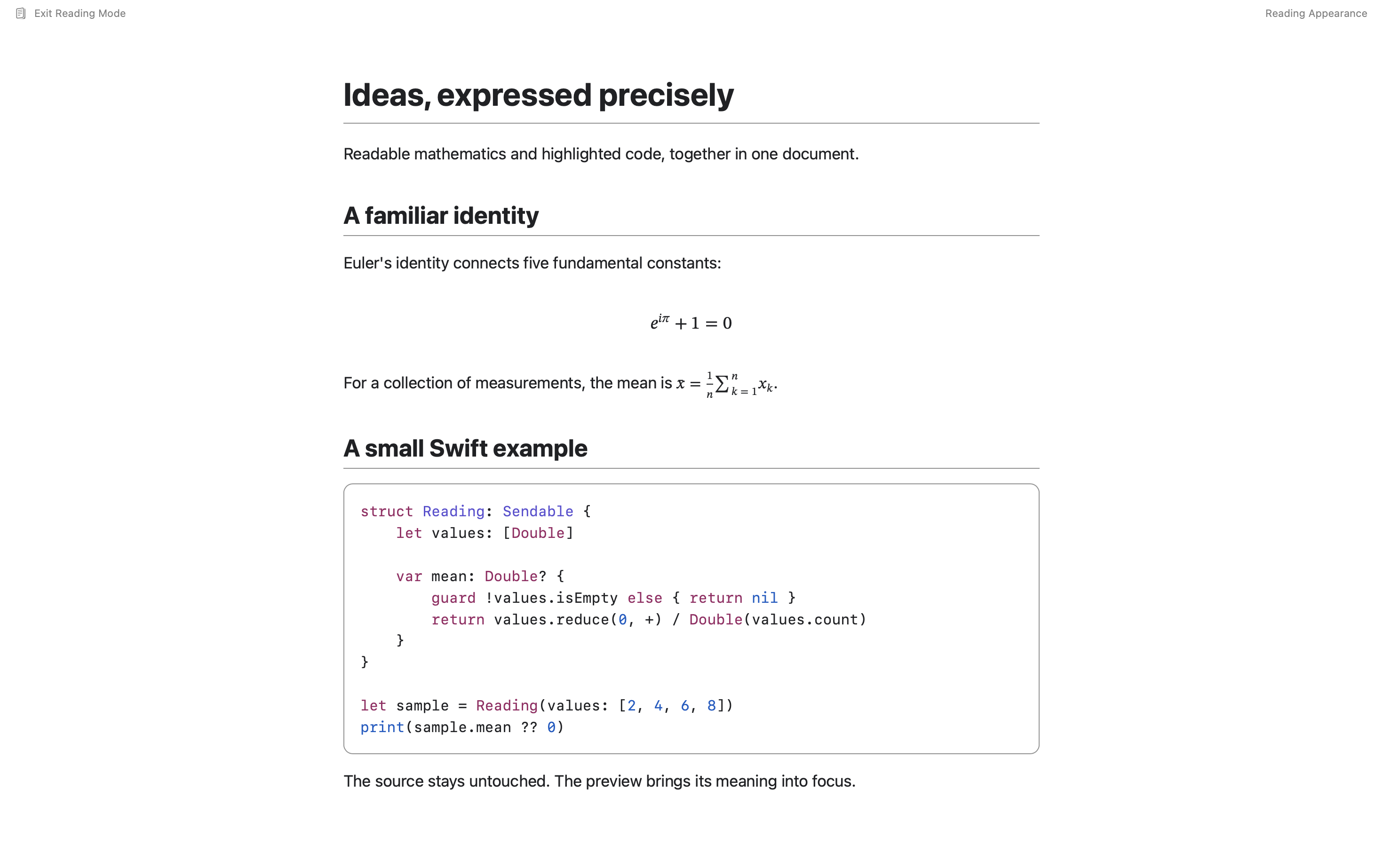
Read inline and display mathematics from supported LaTeX-style syntax, with syntax highlighting for fenced code blocks. Keep the reasoning next to the implementation.
Explicit language tags help GlyphGlance choose the right highlighting for your examples.
A FAMILIAR FILE, A FRESH VIEW
Automatic profile selection handles ordinary use. Choose a different Markdown profile for the current window when you need it, including CommonMark, GitHub Flavored Markdown, MultiMarkdown, Pandoc, Markdown Extra, Original Markdown, and RFC-oriented previews.
Ambiguous .mmd files are checked for Mermaid content and otherwise previewed as MultiMarkdown. Fountain screenplay previews are also supported. Syntax support varies by profile.
Yes. GlyphGlance 1.4 is a free Mac tool from Obscure Essentials®. The Help area explains Reading Mode, appearance and typography, diagram sharing, speech, PDF and Word export, AI metadata, and automation.
GlyphGlance requires an Apple silicon Mac running macOS 26 or newer, including macOS 27. Intel Macs are not supported.
GlyphGlance is a read-only viewer. Reading, selecting a preview profile, enlarging diagrams, and exporting do not change your source file. Use your preferred editor when you want to make changes.
No. Fonts, spacing, margins, appearance, and themes affect GlyphGlance’s document windows. Finder Quick Look, PDF and Word exports, and shared or copied diagrams keep their own formatting. Your source file stays unchanged.
The document toolbar’s Share control shares the original file. Export PDF or Word when you want to share a converted document; a diagram’s own Share and Copy controls transfer only that graphic. The destination app chooses among the supplied formats and has its own privacy practices.
No. Reading, Finder Quick Look, and export work without it. Optional subject and summary generation requires Apple Intelligence to be enabled, its on-device model to be ready, and a supported document language. If generation is unavailable, export continues without those optional fields.
Exports retain supported document structure tags, content language, and authored image or diagram descriptions. This supports accessible reading, but is not PDF/UA certification or a guarantee that every source document is accessible.
Need help with a document or have an idea for GlyphGlance? Get in touch with Sascha.